Ever wondered if someone knows when you grab a screenshot of their hilarious or heartfelt Snapchat Story? The answer isn't always straightforward, and understanding the nuances can help you navigate Snapchat with a bit more confidence (and maybe a little less anxiety). Let's dive into how Snapchat handles screenshot notifications specifically for Stories.
At a glance:
- Snapchat generally notifies users if you screenshot their Story.
- There are a few (often unreliable) workarounds that might prevent notifications.
- Ethical considerations should outweigh technical tricks – think twice before sharing someone's content without permission.
- You can check who has screenshotted your Story (within 24 hours).
- Adjusting privacy settings can limit who views (and potentially screenshots) your Stories.
Screenshot Detection: The Basics for Stories
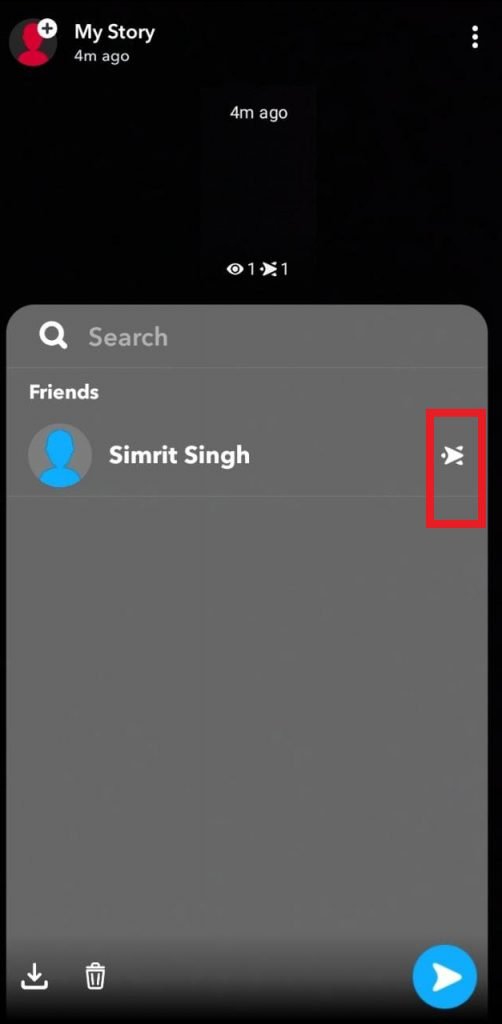
Snapchat's primary goal is to provide a platform for sharing ephemeral content. As part of this, they've implemented a notification system to alert users when their snaps or stories have been screenshotted. This notification typically appears in the chat feed, showing a double-arrow icon (??) next to the Story and letting the user know that "User has taken a screenshot."
This system aims to foster transparency and encourage mindful engagement on the platform. But how consistent is it, and are there ways around it? That's where things get a little more complex.
The Notification Game: When Does Snapchat "Tell"?
Snapchat is designed to notify a user when their story is screenshotted. A notification will appear in the chat feed, showing the username of who took the screenshot, and a double arrow will appear beside the story.
Consider this scenario: a friend posts a funny video Story. You quickly screenshot it to share with another friend later. The original poster will likely receive a notification that you screenshotted their Story.
Potential Workarounds: Risky Business
While Snapchat's notification system is generally reliable, some users have explored workarounds to try and screenshot Stories without alerting the content creator. These methods are not guaranteed to work and may violate Snapchat's Terms of Service.
Here are a few commonly discussed (but often unreliable) techniques:
- Airplane Mode Trick: Enabling Airplane Mode before viewing the Story, taking the screenshot, and then force-closing the app before disabling Airplane Mode. This is a long shot and doesn't always work. Snapchat’s algorithms are constantly evolving to counteract these tricks.
- External Device: Using another phone or camera to simply take a photo of the screen. Obviously, Snapchat has no way of detecting this, since your phone doesn't interact with the application.
- Screen Mirroring: Mirroring your phone's screen to a computer or TV and then capturing the content on the secondary device.
- Third-Party Apps: Some apps claim to allow you to view snaps and stories without triggering notifications. These apps are often unsafe, can compromise your account security, and may not even work. For instance, Phonsee is a third-party application that requires installation on the target device and claims to bypass screenshot notifications.
A word of caution: Using these workarounds comes with risks. Snapchat might detect the use of third-party apps, leading to account suspension or even a permanent ban. More importantly, consider the ethical implications of circumventing someone's privacy expectations.
Ethical Considerations: It's More Than Just Tech
Even if you could reliably screenshot a Story without the other person knowing, should you? Think about the intent behind sharing something on Snapchat. It's usually meant to be ephemeral and viewed by a specific audience.
Ask yourself:
- Would the person be comfortable with me sharing this Story outside of Snapchat?
- Am I respecting their privacy by taking a screenshot without their knowledge?
Respect and ethical behavior are paramount. If you're unsure, it’s always best to ask for permission before sharing someone's content.
How to See Who Screenshotted Your Story
Want to know who’s been capturing your Stories? Snapchat makes it easy to find out (within the 24-hour window):
- Open Snapchat: Launch the app.
- Go to Your Profile: Tap your profile icon.
- View 'My Story': Select your active Story.
- Look for the Screenshot Icon: Find the overlapping arrows icon (??) next to any snap within your Story.
- Tap the Icon: This will display a list of usernames who have screenshotted that specific snap.
This feature allows you to keep track of who's interacting with your content and take action if necessary.
Adjusting Privacy to Prevent Screenshots: Control Your Content
While you can't completely prevent people from screenshotting your Stories, you can limit who can view them in the first place. Here's how to adjust your privacy settings:
- Open Your Profile: Tap your profile icon in Snapchat.
- Access 'Settings': Tap the gear icon in the top right corner.
- Go to 'Who Can...': Scroll down to the 'Privacy Controls' section.
- Modify 'View My Story': Change the setting from 'Everyone' to 'My Friends' or 'Custom'.
- 'My Friends' limits Story views to only people you've added as friends.
- 'Custom' allows you to select specific friends who can view your Story.
What to Do About Unauthorized Screenshots: Options and Actions
If you discover that someone has screenshotted your Story and shared it without your permission, you have a few options:
- Identify the User: Follow the steps above to see who took the screenshot.
- Report the User:
- Navigate to your story.
- Tap on the viewers’ icon.
- Identify users with the two-arrow symbol next to their name.
- Press and hold on the name and select 'Report'.
- Block the User: This will prevent them from seeing your future Stories and snaps. You can block them directly from their profile.
- Contact Snapchat Support: If the screenshot was shared publicly or used in a way that violates Snapchat's Terms of Service, you can report the incident to Snapchat Support.
Troubleshooting Notification Issues: When Things Go Wrong
Sometimes, screenshot notifications might not work as expected. Here are a few troubleshooting steps:
- Check Snapchat's Notification Settings: Make sure you have notifications enabled for screenshots in both the Snapchat app and your device settings.
- Update the App: Ensure you're using the latest version of Snapchat.
- Verify Network Connectivity: A stable internet connection is crucial for notifications to be sent and received.
- Reinstall the App: As a last resort, try reinstalling the Snapchat app.
Quick Answers: Your Burning Questions About Snapchat Screenshots
- Does Snapchat notify if you screen record a Story? Yes, Snapchat typically notifies users if you screen record their Story, using the same double-arrow icon. However, the same workarounds mentioned earlier might apply (with the same risks and ethical considerations).
- Do third-party apps really work for bypassing screenshot notifications? They claim to, but they're often unreliable, risky, and can lead to account suspension. It's generally not worth the risk.
- Does Snapchat notify if you screenshot a text message? No, Snapchat does not notify users if you screenshot a text message within a chat. Screenshot notifications are primarily for media (photos and videos).
- If I delete a Story, does the screenshot notification disappear for the sender? No, once a screenshot notification has been sent, it generally remains visible in the sender’s Story viewer list, even if the Story is deleted.
- Can people see if I screenshot their story if we are not friends? Snapchat only notifies and shows you the identities of friends who have screenshotted your story.
Taking Action: Your Snapchat Screenshot Playbook
Here's a quick guide to help you make informed decisions about screenshotting Stories:
Scenario: You want to screenshot a friend's Story.
- Ask Yourself: Is this something they'd be comfortable with me sharing?
- If Yes (or you're unsure): Ask for permission. It's always the best approach.
- If No: Respect their privacy and refrain from screenshotting.
Scenario: You want to prevent people from screenshotting your Stories. - Adjust Privacy Settings: Limit who can view your Stories to 'My Friends' or a custom list.
- Be Mindful of What You Post: Consider the potential consequences of sharing sensitive information.
Scenario: You suspect someone has screenshotted and shared your Story without permission. - Identify the User: Check your Story viewers for the screenshot icon.
- Report and/or Block: Take appropriate action based on the severity of the situation.
- Contact Snapchat Support: If necessary, report the incident to Snapchat.
Understanding the interplay between Snapchat's features, potential workarounds, and ethical considerations empowers you to navigate the platform responsibly. For a broader understanding of how screenshot notifications work across all of Snapchat, including snaps and chats, check out Snapchat screenshot notifications explained.
Remember: Transparency and respect are key to a positive Snapchat experience.
