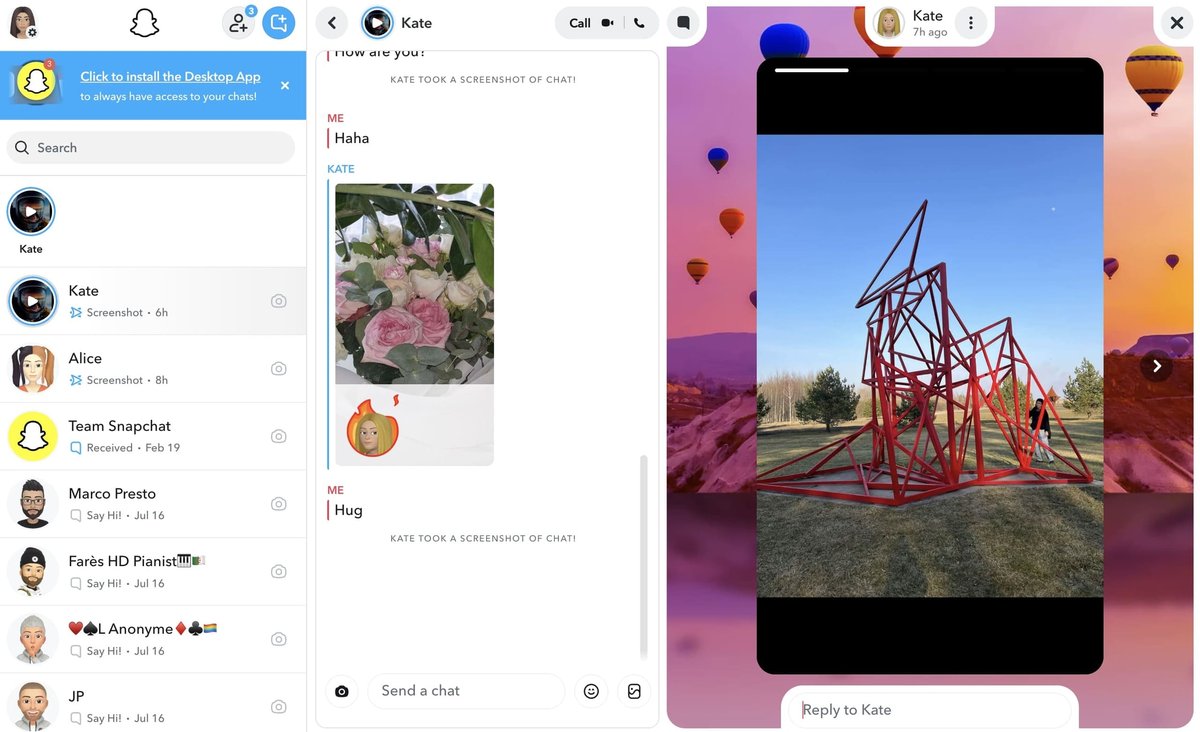
Want to save a Snap story but worried about the dreaded screenshot notification? You're not alone. The fleeting nature of Snapchat makes saving those moments tempting, but the app's notification system adds a layer of complexity – and potential awkwardness.
At a glance:
- Understand when Snapchat sends screenshot notifications for stories.
- Explore (potentially unreliable) workarounds for discreetly saving Snaps.
- Weigh the ethical considerations of screenshotting without consent.
- Learn about alternative methods that avoid direct screenshot detection.
- Get quick answers to common questions about Snapchat screenshots.
The Snapchat Screenshot Notification System: How It Works
Snapchat's core appeal lies in its ephemeral content. Understanding how the screenshot notification system functions is crucial before you attempt to save a story. The app is designed to alert the story creator when someone takes a screenshot. This usually generates a notification delivered to the story poster indicating that User X screenshotted their story.
This notification feature aims to encourage respect for privacy and mindful interaction within the app. It's a digital tap on the shoulder, reminding you that the content isn't meant for permanent archiving without the sender's knowledge. Keep in mind that this system generally applies to stories, and always applies to disappearing media sent via direct message.
Risky Business: Methods That No Longer Work Reliably
Many older "hacks" for screenshotting Snapchat stories undetected are now ineffective. Snapchat constantly updates its platform to close loopholes. Here's a rundown of methods that used to work but are now unreliable:
- Airplane Mode: The classic trick of enabling Airplane Mode before screenshotting is no longer consistently effective. Snapchat seems to have found ways to detect screenshots even when offline.
- iPhone Mirroring Feature: Using the built-in iPhone mirroring feature used to be a workaround, but Snapchat has addressed this.
- Snap Remix: The Snap Remix feature can be used to screenshot your own Snaps, but it's not intended for screenshots of other users' Snaps.
- Screen Recording (Built-In): While screen recording might work in some cases, especially on older devices, it's increasingly likely to trigger a notification.
- Clearing the Cache: Purging the cache after a screenshot doesn't prevent a notification from being sent.
Ethical Considerations: Is It Right to Screenshot Without Permission?
Even if you can technically avoid triggering a screenshot notification, it's important to consider the ethical implications. The sender shared the content with the understanding that it would disappear. Screenshotting without their knowledge can breach that trust.
Consider these points:
- Privacy Expectations: Did the sender intend the content to be temporary?
- Context Matters: Is it a silly, harmless Snap, or something more personal?
- Relationship Dynamics: How would the sender feel if they knew?
A good rule of thumb: If you're unsure, ask for permission. A simple "Hey, is it okay if I screenshot this?" can go a long way.
Sneaky, But Not Guaranteed: Alternative (Potentially Unreliable) Methods
While Snapchat is constantly improving its detection methods, a few alternative approaches might still work in some situations. However, be aware that these are not foolproof and may become ineffective at any time.
- The Second Device Method: This is the most reliable, but also the most obvious. Simply use another phone or camera to take a picture or video of the Snapchat story. This bypasses the screenshot detection entirely.
- Pitfalls: Image quality might be lower compared to a direct screenshot.
- Screen Mirroring (iPhone to Mac): Connect your iPhone to your Mac using AirPlay or a cable. Mirror your phone's screen to your Mac, then use your Mac's screenshot tools (Command+Shift+4) or QuickTime Player to record the screen and take screenshots.
- Pitfalls: Requires a Mac and potentially a cable. Snapchat may detect the mirroring in some instances.
- Screen Recording (Android): Enable screen recording through your Android device's Quick Settings. Capture as many Snaps as you want, then review the screen recording and make screenshots afterward.
- Pitfalls: May trigger a notification.
- Google Assistant (Android): Open the Snap you want to capture, activate Google Assistant, and say, "Take a screenshot".
- Pitfalls: This method is unreliable and may not work on all Android devices or with all versions of Snapchat.
- Snapchat Web: Snapchat Web may blur snaps if you try to natively screenshot, but screen recording your browser may work.
- Pitfalls: Using the browser is inconvenient on mobile.
Legal Considerations: Know Your Rights and Risks
While screenshotting a Snapchat story might seem like a minor offense, it's important to be aware of potential legal implications. Laws regarding privacy and data protection vary by location.
- Copyright: The content of the Snap might be subject to copyright. Sharing a screenshot publicly without permission could infringe on the creator's rights.
- Privacy Laws: Some jurisdictions have laws regarding the recording or distribution of private communications.
- Terms of Service: Screenshotting might violate Snapchat's terms of service, potentially leading to account suspension or termination.
Consult with a legal professional if you have concerns about the legality of screenshotting in your specific jurisdiction.
Decoding the Snapchat Interface: Understanding the Screenshot Icon
Snapchat uses a specific icon to indicate that a user has taken a screenshot. When you view the list of people who have viewed your story, a double-arrow icon will appear next to the name of anyone who screenshotted it. This visual cue is a clear indicator that the user saved your Snap.
It's worth noting that once a notification is sent, deleting the Story will not remove the notification from the other user's Snapchat interface. The screenshot notification is permanent within that conversation thread.
Third-Party Apps: A Risky Gamble
Numerous third-party apps claim to bypass Snapchat's screenshot detection. However, using these apps is generally not recommended for several reasons:
- Security Risks: These apps often require access to your Snapchat account, potentially compromising your login credentials and personal information.
- Malware: Some apps may contain malware or viruses that can harm your device.
- Violation of Terms of Service: Using third-party apps to circumvent Snapchat's features violates the app's terms of service, potentially leading to account suspension or permanent ban.
- Ineffectiveness: Many of these apps are simply scams or no longer function as advertised.
It's always best to avoid using third-party apps that promise to bypass Snapchat's security measures. The risks outweigh any potential benefits.
Screenshotting Snapchat Stories: Does it notify? An Important Reminder
For a comprehensive overview of Snapchat's notification policies, including details on screenshotting direct messages and other aspects of the app, refer to this article: Screenshotting Snapchat stories: does it notify?. This will provide broader context for the specifics discussed here.
Common Questions About Snapchat Screenshots
Let's address some frequently asked questions about screenshotting Snapchat stories:
Q: Does Snapchat notify if I screenshot the homescreen of the app?
A: No, Snapchat does not send a notification if you screenshot the app's homescreen or any other part of the app outside of Snaps, Stories, or Chats.
Q: Can I disable Snapchat's screenshot notification feature?
A: No, there is no legitimate way to disable the screenshot notification feature within the Snapchat app.
Q: Will deleting a Story remove the screenshot notification?
A: No, deleting a Story after someone takes a screenshot will not remove the notification from their Snapchat interface.
Q: Do older versions of Snapchat have less sophisticated screenshot detection?
A: Possibly. Older versions of the app might have had less sophisticated screenshot detection capabilities, but using outdated versions is generally not recommended due to security vulnerabilities.
Decision Tree: Should You Screenshot That Snap?
Here's a quick decision tree to help you decide whether to screenshot a Snapchat story:
- Do you have the sender's permission?
- Yes: Screenshot away!
- No: Go to step 2.
- Is it a harmless, non-sensitive Snap?
- Yes: Consider using a second device if you're concerned.
- No: Go to step 3.
- Are you willing to risk the sender finding out?
- Yes: Proceed with caution using one of the alternative methods (knowing they are unreliable).
- No: Respect the sender's privacy and refrain from screenshotting.
Start Snapping Responsibly
While the allure of saving a fleeting Snapchat story is understandable, it's crucial to be aware of the potential consequences – both ethical and technical. Snapchat's notification system is in place to foster a sense of privacy and respect within the app. Before you reach for that screenshot button, take a moment to consider the sender's intentions and whether saving the Snap is truly necessary. If in doubt, simply ask for permission. It's a small gesture that can prevent potential misunderstandings and maintain trust.
