For the bigger picture and full context, make sure you read our main guide on Does Fb Notify When You Save A Photo on Facebook?.
Ever wonder if someone gets an alert when you save their Facebook picture? It's a common concern, especially when wanting to keep a photo for personal use or inspiration. The answer might surprise you and has significant implications for your online privacy and how you should manage your own content.
At a Glance:
- Understand Facebook's photo saving notification policies.
- Learn how to control your photo privacy settings.
- Discover methods to protect your photos from unauthorized use.
- Find out what to do if you suspect someone has stolen your photos.
- Get tips for managing photos on Facebook Pages for businesses.
The Silent Save: Understanding Facebook's Notification Policy
Facebook, in its current design, does not send a notification to a user when someone saves their photos. Whether it's a picture from a profile, a post in a group, or even a photo sent via Messenger, the act of saving it remains unseen by the original poster. This design choice likely aims to balance user privacy and encourage more sharing on the platform without creating anxieties about every action taken with their content. Find out more here.
This lack of notification can cut both ways. On one hand, it provides a sense of freedom to save images that resonate with you. On the other, it means your own photos could be saved without your knowledge. Understanding the mechanics of how saving works can inform how you approach sharing and protecting your images.
How Saving Works: A Quick Walkthrough
Saving a photo on Facebook is usually a straightforward process:
- Open the Photo: Tap on the photo you want to save to view it in full-screen mode.
- Access the Options: Look for the ellipsis icon (three dots) typically located in the top right corner (on mobile) or bottom right (on desktop).
- Select "Save Photo": Tap or click on the "Save Photo" option. A confirmation will usually appear, such as "Photo saved to this device."
The saved photo will then be stored in your device's default photo gallery or downloads folder. It's a silent action – the photographer remains unaware.
Taking Control: Managing Your Photo Privacy on Facebook
Since Facebook doesn't notify about saves, the onus is on you to manage your privacy settings. Here's how to tighten the reins on who views (and potentially saves) your photos:
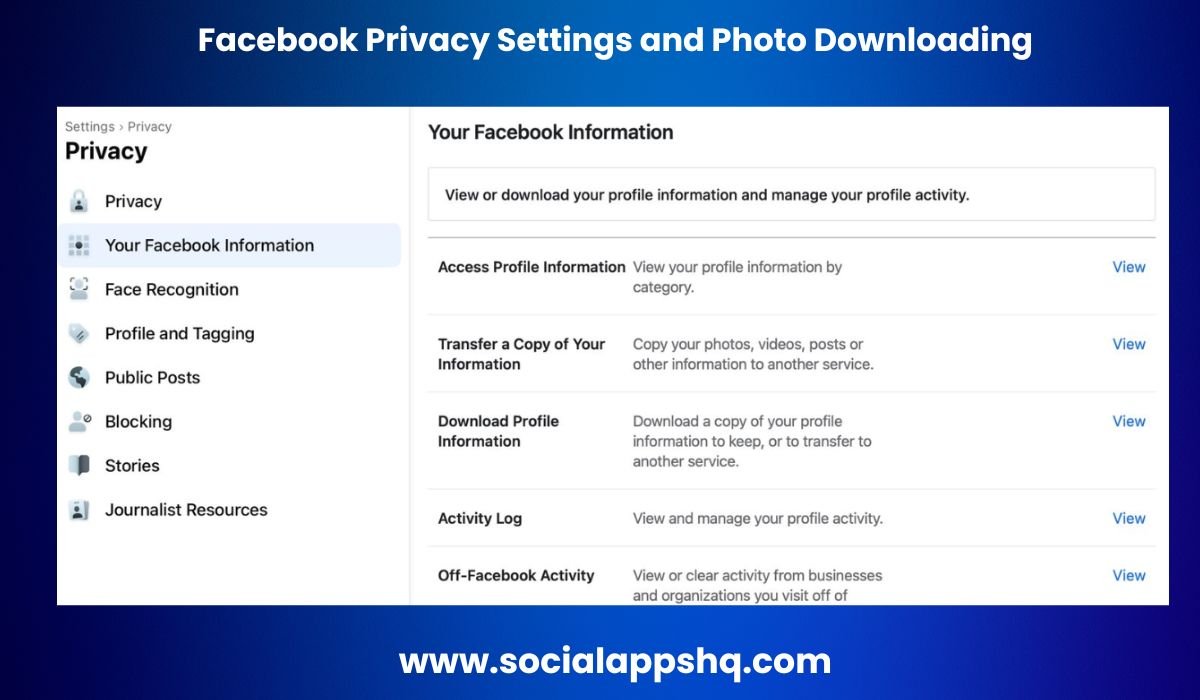
- Navigate to Settings & Privacy: From your Facebook feed, tap the hamburger menu (three horizontal lines). Scroll down and select "Settings & Privacy," then hit "Settings."
- Use Privacy Checkup: Within settings, find "Privacy Checkup." This tool guides you through key privacy areas.
- Control "Who can see what you share": This section is critical. Review your settings for "Future Posts" – this determines the default audience for new posts.
- Adjust Audience Settings: Tap the dropdown menu in the "Future posts" section. You have several options:
- Public: Anyone on or off Facebook can see your posts (least private).
- Friends: Only your Facebook friends can see your posts.
- Friends except…: Allows you to exclude specific friends from seeing your posts.
- Specific friends: Only certain friends can see your posts..
- Only me: Only you can see the posts (most private).
Pro Tip: Regularly review your privacy settings. Facebook's interface and options can change, so staying vigilant is important.
Beyond Privacy Settings: Extra Layers of Protection
Privacy settings are a foundational defense, but consider these additional steps to safeguard your photos:
- Watermarking: Adding a subtle watermark (your name, logo, or website) can deter unauthorized use. While not foolproof, it makes it harder for others to claim your work as their own.
- Reverse Image Search: Periodically use Google Images or TinEye to search for your photos online. This can help you spot instances where your images are being used without your permission.
- Facebook Profile Picture Guard: This feature adds a visual "frame" around your profile picture, making it more difficult for others to download and use it.
- Monitor Engagement Metrics: Keep an eye on the reach and impressions of your posts. A sudden, unusual spike in activity could indicate your photo is being shared beyond your intended audience, though it could also just mean your content is resonating well.
What To Do If Your Photos Are Stolen
Discovering your photo has been used without your consent can be unsettling. Here's a plan of action:
- Document everything: Take screenshots of the unauthorized use, including the URL and any identifying information about the person or website using your photo.
- Contact the offending party: If possible, politely request that they remove the photo. Sometimes, a simple request is all it takes.
- Report to Facebook: If the photo is being used on Facebook without your permission (e.g., in a fake profile or a post violating community standards), report it directly to Facebook.
- Consider a DMCA takedown notice: If the photo is being used on another website, you can send a Digital Millennium Copyright Act (DMCA) takedown notice to the website's hosting provider. This is a legal request to remove the infringing content.
Ethical Considerations: Respect copyright law and privacy when saving or sharing content. Just because you can save a photo doesn't mean you should use it without permission.
Facebook Pages: Managing Photos for Your Business
If you're managing a Facebook Page for a business, photos become an integral part of your brand. While the "no notification" rule still applies to saving photos, here are some points to keep in mind:
- Track Reach and Impressions: Facebook Insights provides valuable data on how your photos are performing.
- High Reach, Low Impressions: Indicates your content may be seen by many people but not actively engaged with. Consider creating more compelling visuals or captions.
- Low Reach, High Impressions: Suggests your content is engaging to those who see it, but you need to expand your audience. Try using relevant hashtags or running targeted ads.
- Use High-Quality Images: Professional-looking photos enhance your brand's credibility.
- Protect Your Brand Assets: Watermark your product photos and consider using a licensing agreement for any images used by third parties.
Case Snippet: A small business noticed a competitor using their product photos on their own Facebook Page. After contacting the competitor directly and sending a cease-and-desist letter, the photos were promptly removed.
Quick Answers: Common Questions About Saving Photos
Q: Can someone tell if I screenshot their Facebook story?
A: No, Facebook does not currently notify users when someone screenshots their story.
Q: Does Facebook notify if I save a photo from a private group?
A: No, the "no notification" policy applies to photos in private groups as well.
Q: Can I prevent people from saving my profile picture?
A: Facebook offers Profile Picture Guard, which makes it more difficult, but not impossible, for others to save or share your profile picture.
Q: Is there a way to see who saved my photos?
A: No, Facebook does not provide a feature to track who has saved your photos.
Actionable Close: Your Photo Privacy Checklist
Here's a quick guide to help you protect your photos on Facebook:
- Review Your Privacy Settings: At least once a month, check your "Who can see what you share" settings.
- Consider Watermarking: Add a watermark to your photos, especially if they are valuable or represent your brand.
- Perform Reverse Image Searches: Periodically search for your photos online to check for unauthorized use.
- Enable Profile Picture Guard: If you are concerned about your profile picture being misused, enable this feature.
- Be Mindful of What You Share: Think twice before posting anything you wouldn't want others to potentially save and share. It's a connected world, so privacy is paramount.
