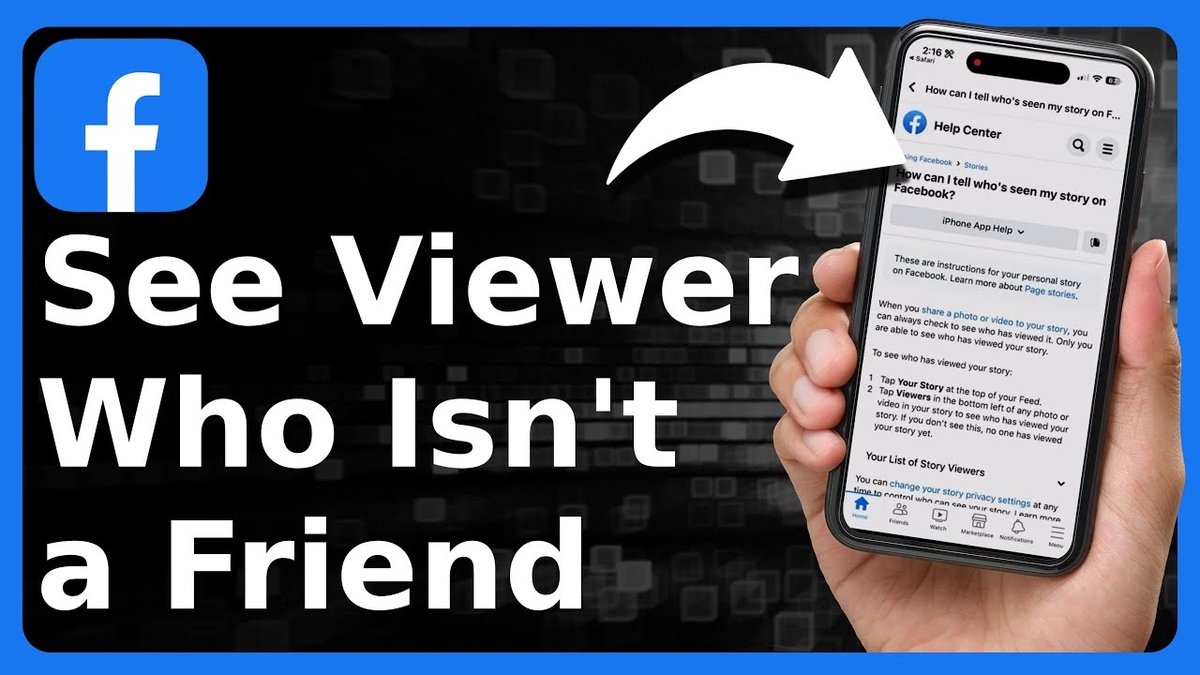
Ever wonder if that friend who always seems to “like” your pics is also saving them? The thought crosses everyone's mind: does facebook tell you when someone saves your photo? The short answer is no, but let’s dive into the why and how you can maintain your photo privacy anyway.
At a glance:
- Facebook doesn't notify you when someone saves your photo.
- Saving a photo is considered a private action.
- You can control who can see your photos, thereby reducing the chances of them being saved by unwanted parties.
- Watermarking and adjusting privacy settings can help protect your images.
- Understanding the difference between "saving" and other actions on Facebook is key.
The Silent Save: Understanding Facebook's Privacy Stance
Facebook's approach to photo saving is rooted in privacy. Imagine the constant barrage of notifications if every photo save triggered an alert! The platform treats saving a photo as a personal action, like bookmarking a webpage. It's for the user's convenience, not a public endorsement or interaction. Think of it as silently adding a recipe to your digital cookbook. The chef (the photo's owner) doesn't get a notification that you've saved it. They get notified if you comment or reshare it.
This is in contrast to other platforms like Snapchat, which does notify users when their content is screenshotted. This difference highlights varying philosophies around ephemeral vs. persistent content and user expectations for privacy.
Saving vs. Other Interactions: A Crucial Distinction
It's easy to conflate saving with other Facebook actions that do generate notifications. Here’s a breakdown:
- Saving: Privately bookmarking a photo for later viewing. No notification is sent.
- Liking: Publicly expressing approval. The photo owner receives a notification.
- Commenting: Adding a text or media response to the photo. The photo owner and other commenters are notified.
- Sharing: Reposting the photo to your own timeline or sending it to a friend. The original poster may be notified, depending on their privacy settings and the type of content.
- Tagging: Linking a person's profile to the photo. The tagged person is notified.
Knowing these differences is critical for understanding what actions are visible and which remain private.
How Saving Photos Works on Different Devices
The process of saving a photo is similar across different devices, but here’s a quick rundown:
- Desktop: Hover over the photo, click the three dots in the top-right corner, and select "Save photo."
- Mobile (iOS): Tap the image, press the three dots, and select "Save photo." Alternatively, press down firmly on the photo until a menu pops up and choose "Save Image."
- Mobile (Android): Tap the image, press the bookmark icon (or three dots, depending on the app version), and select "Save photo."
Once saved, the photo is stored in your "Saved" folder, accessible from your profile menu. To remove a saved photo, simply revisit it and select "Unsave."
Proactive Privacy: Taking Control of Your Photo Visibility
While you can't prevent someone from saving your photos entirely (short of not posting them), you can significantly reduce the likelihood of unwanted saves by carefully managing your privacy settings.
- Adjust Album Visibility:
- Go to your Facebook profile and click on the "Photos" tab.
- Select the album you want to edit.
- Click on the three dots icon and choose "Edit Album."
- Use the audience selector to choose who can see the album (Public, Friends, Friends Except..., Specific Friends, or Only Me).
- Select "Friends" or "Only Me" for greater control.
- Limit Post Audience:
- Before posting a photo, pay attention to the audience selector above the "Post" button.
- Choose "Friends" instead of "Public" to limit visibility to your connections.
- Use the "Friends Except..." option to exclude specific individuals.
- Enable Profile Guard (If Available):
- In some regions, Facebook offers a "Profile Guard" feature that deters unauthorized downloads and screenshots of your profile picture.
- Check your privacy settings to see if this option is available.
- Review Tag Settings:
- Go to "Settings & Privacy" > "Settings" > "Profile and Tagging."
- Enable "Review posts you're tagged in before they appear on your timeline?" This gives you control over which tagged photos appear on your profile.
- Use Watermarks:
- Add a subtle watermark to your photos before uploading them. This doesn't prevent saving, but it discourages unauthorized use and makes it clear that the image is your property.
Case Snippet: Sarah's Illustration Dilemma
Sarah, a digital illustrator, shared her artwork on Facebook to gain feedback and build her portfolio. However, she worried about her images being saved and potentially used without her permission. She implemented the following strategies:
- She adjusted her album privacy settings to "Friends Only."
- She added a small, discreet watermark to her illustrations.
- She regularly checked for her images being used elsewhere online using reverse image search.
These steps helped Sarah protect her artwork while still allowing her to showcase it to her network.
Protecting Your Photos: Reporting and Legal Options
What if someone does save your photo and use it without your permission? Here are your options:
- Report the Photo:
- If you find your photo being used inappropriately on Facebook, report it to the platform.
- Click the three dots icon on the post and select "Report post."
- Choose the appropriate reason, such as "Intellectual property violation."
- File a Copyright Claim:
- If the unauthorized use infringes on your copyright, you can file a copyright claim with Facebook.
- This requires providing proof of ownership and details about the infringing use.
- Contact the Person:
- If you know the person using your photo without permission, consider contacting them directly and asking them to remove it.
- Seek Legal Advice:
- In cases of serious copyright infringement or misuse, consult with an attorney to explore your legal options.
Quick Answers: Your Burning Questions About Photo Saving
- Q: Can I see a list of people who saved my photo?
- A: No, Facebook does not provide this information. Saving is a private action, and the platform does not track or share who saves a particular photo.
- Q: Are there any third-party apps that can tell me who saved my photo?
- A: No. Be very wary of any app that claims to reveal this information. These apps are often scams or attempt to steal your personal data. As a rule, such apps violate Facebook's terms of service and may compromise your account security.
- Q: Does Facebook notify me if someone takes a screenshot of my photo?
- A: No, Facebook does not notify you if someone takes a screenshot of your photo. This is similar to saving and is considered a private action.
- Q: Is it illegal to save someone's Facebook photo without their permission?
- A: It depends on how the photo is used. Saving a photo for personal viewing is generally not illegal. However, using the photo for commercial purposes, reposting it without permission, or altering it in a defamatory way may be illegal and could constitute copyright infringement.
Facebook and Photo Privacy: A Constant Evolution
Facebook continuously updates its privacy policies and features. While the current stance is that Facebook doesn’t tell you if someone saves your photo, staying informed about these updates is crucial. Facebook is constantly working towards creating a safer space for their users while also providing them privacy options to curate their feeds as desired
You can always access your Facebook privacy settings by clicking on the downward arrow at the top right corner of the screen and selecting “Settings & Privacy.” There, you’ll find the “Privacy Settings” tab where you can customize your preferences.
Your Photo Privacy Playbook
Here's a quick-start guide to maximizing your photo privacy on Facebook:
- Review and adjust your default audience settings: Set your future posts to "Friends" or a custom list.
- Check the audience of existing albums: Ensure that your past photos are only visible to your intended audience.
- Enable tag review: Control which tagged photos appear on your timeline.
- Consider adding watermarks: Deter unauthorized use and make it clear that the image is your property.
- Stay informed: Regularly review Facebook's privacy policies and updates.
- Report misuse: If you find your photos being used without your permission, report it to Facebook.
The bottom line is that while you can't completely control what others do with your photos, you can take proactive steps to protect your privacy and minimize the risk of misuse. Understanding your options and utilizing Facebook's privacy tools is key to a safer and more secure online experience. For a broader understanding of Facebook notifications and privacy, Find out the answer here.
