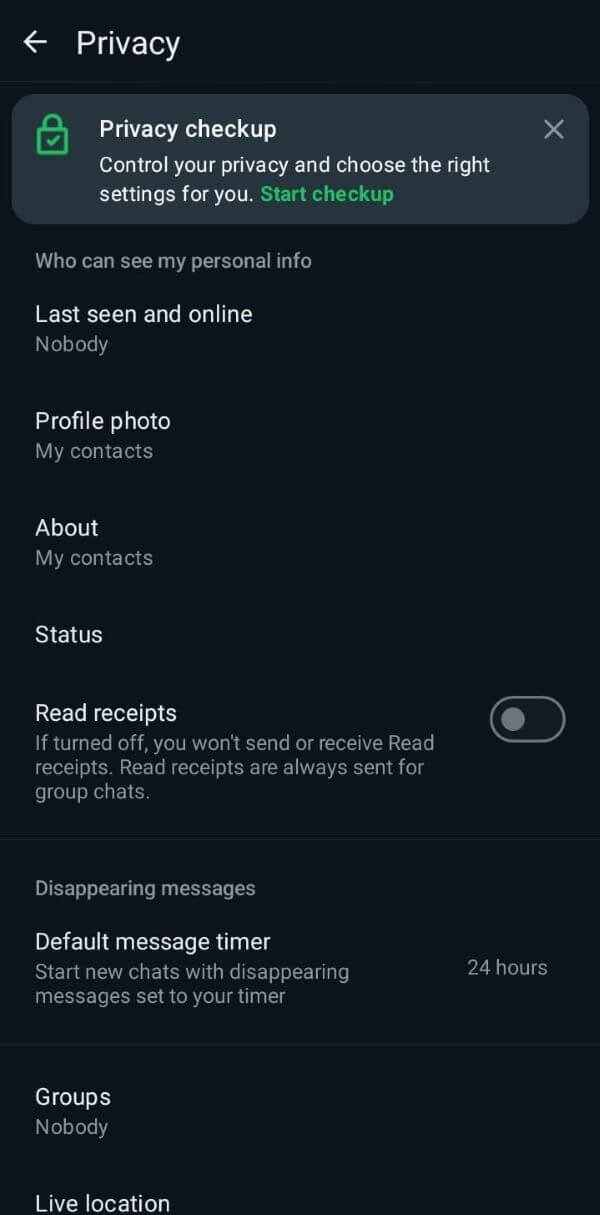
Worried about unwanted screenshots of your WhatsApp profile photo circulating without your permission? While WhatsApp doesn't offer a foolproof "screenshot block" for everything, you can significantly control who sees your profile picture in the first place. This is a crucial first step for anyone serious about enhancing their privacy on the platform. Let's dive into practical steps you can take right now.
At a glance:
- Learn how to adjust your WhatsApp profile photo visibility settings.
- Understand the trade-offs between different profile photo privacy options.
- Discover how blocking contacts plays a role in preventing screenshots.
- Get practical tips for handling sensitive profile photos.
- See how a multi-layered approach to privacy offers the best security.
Understanding the Limits: Profile Photo Control is Key
WhatsApp doesn’t send a notification when someone screenshots your profile photo, or any other content for that matter. So, you won't know if someone is taking a screenshot. The best defense lies in proactive control over who can see your photo. Think of it like guarding a physical photo: you decide who gets to view the original, minimizing the risk of unauthorized copies. The fewer people who can see it, the fewer potential screenshots.
Disable screenshot protection explained. While a true "screenshot block" doesn’t exist in WhatsApp for general chats and content (as discussed in our broader guide), focusing on limiting visibility is the most effective strategy available.
4 Levels of Profile Photo Privacy: Finding Your Comfort Zone
WhatsApp offers four distinct choices for controlling who sees your profile photo. Each option has its own implications for your overall privacy:
- Everyone: This is the most permissive option. Anyone who has your phone number saved in their contacts, even if you don't have their number, can see your profile photo. High convenience, low privacy.
- My Contacts: Only people you have saved in your own contacts list can see your profile photo. This offers a significant privacy boost compared to "Everyone," as it limits visibility to individuals you know (or at least knew at some point). Medium convenience, medium privacy.
- My Contacts Except...: This is where you gain granular control. You can select specific contacts from your address book whom you don't want to see your profile photo. Ideal for excluding acquaintances, former colleagues, or anyone you suspect might misuse your photo. Low convenience, high privacy.
- Nobody: This is the most restrictive option. No one except you can see your profile photo. This is the ultimate privacy setting, but it can also make it harder for your contacts to identify you in group chats or know they're messaging the right person. No convenience, ultimate privacy.
Which option should you choose?
The best choice hinges on your personal comfort level and the nature of your contacts. If you value convenience and don't mind widespread visibility, "Everyone" or "My Contacts" might suffice. But if you're concerned about specific individuals or simply prefer a higher degree of privacy, "My Contacts Except..." or "Nobody" are the better choices.
Step-by-Step: Adjusting Your Profile Photo Visibility
Changing your profile photo visibility settings is straightforward:
- Open WhatsApp: Launch the app on your phone.
- Go to Settings: Tap the three dots (Android) or the Settings tab (iOS).
- Navigate to Privacy: Select "Privacy."
- Choose "Profile Photo": Tap on "Profile Photo."
- Select Your Preferred Option: Choose from "Everyone," "My Contacts," "My Contacts Except...", or "Nobody."
- (If applicable) Select Excluded Contacts: If you chose "My Contacts Except...", a list of your contacts will appear. Tap the contacts you want to exclude from seeing your profile photo. A checkmark will appear next to their names.
- Confirm Your Changes: The changes are saved automatically.
Pro Tip: Regularly review your "My Contacts Except..." list, especially after cleaning up your contacts or adding new ones.
The Blocking Power Play: A More Drastic Measure
Blocking a contact on WhatsApp is a nuclear option, but it guarantees they won't see your profile photo (or any other information about you). When you block someone:
- They can't send you messages.
- They can't see your online status or last seen time.
- They can't see your profile photo.
- They can't see your status updates.
When to consider blocking: - If someone is harassing you.
- If you want to completely cut off contact with someone.
- If you strongly suspect someone is misusing your profile photo.
Downsides of blocking: - It's a permanent action (unless you unblock the person).
- The blocked person may realize they've been blocked.
- It can create awkward social situations if you share mutual contacts.
How to block a contact:
- Open the chat with the person you want to block.
- Tap on their name at the top of the screen to view their profile.
- Scroll to the bottom of their profile and tap "Block [Contact Name]".
- Confirm that you want to block them.
Sensitive Profile Photos: Think Before You Post
Before uploading a potentially sensitive profile photo (e.g., one featuring your children, your home, or revealing personal information) ask yourself:
- Who do I really want to see this?
- Could this photo be misused if it fell into the wrong hands?
- Am I comfortable with anyone being able to screenshot this and share it?
If you have any doubts, err on the side of caution. Consider using a less revealing photo, or simply opting for "Nobody" to ensure maximum privacy.
Example: Sarah, a teacher, used a photo of herself on vacation as her WhatsApp profile picture. After a parent started using details from her photo in inappropriate conversations, she switched to a generic avatar and set her visibility to "My Contacts Except..." specifically excluding that parent.
Quick Answers: Common Questions About Profile Photo Privacy
Q: Will WhatsApp notify me if someone screenshots my profile photo?
A: No, WhatsApp does not provide screenshot notifications for profile photos or any other content.
Q: Can I prevent someone from downloading my profile photo?
A: While you can't completely prevent someone from attempting to download your profile photo (through screenshots or other means), limiting visibility significantly reduces the risk.
Q: What happens if I change my profile photo? Will the old one still be visible to those who screenshotted it?
A: Changing your profile photo will update it for everyone who currently has permission to see it. Existing screenshots taken by others will, of course, still exist on their devices, but your current photo is what they'll see going forward (assuming they still have permission to view it).
Q: If I block someone and then unblock them, will they be able to see my profile photo again?
A: Yes, unblocking someone restores their ability to see your profile photo, subject to your current privacy settings.
Q: Does setting my profile photo to "Nobody" affect my ability to see other people's profile photos?
A: No, your profile photo visibility settings only affect who can see your photo. They don't prevent you from seeing the profile photos of others.
Your Profile Photo Privacy Playbook: A Quick Start
Here’s a quick decision tree to guide your profile photo privacy setup:
- Am I comfortable with anyone having access to my profile photo?
- Yes: Set visibility to "Everyone." (Lowest Privacy)
- No: Proceed to question 2.
- Do I only want people I know (i.e., those in my contacts) to see my photo?
- Yes: Set visibility to "My Contacts." (Medium Privacy)
- No: Proceed to question 3.
- Are there specific people I want to exclude from seeing my photo?
- Yes: Set visibility to "My Contacts Except..." and select the individuals to exclude. (High Privacy, Most Control)
- No: Set visibility to "Nobody." (Highest Privacy, Least Convenience)
Taking control of your profile photo visibility is a simple yet powerful way to enhance your WhatsApp privacy. While it's not a foolproof screenshot blocker, it significantly reduces the risk of unwanted screenshots and misuse of your personal information. Remember to regularly review your settings and adjust them as needed to maintain your desired level of privacy.
